Shape Adjustments: Geometry, Color, and Time
There are three categories of shape adjustments: geometric, color, and temporal. Anywhere that you see num there can either be a numeric constant or an expression.
Geometry Adjustments
The geometry of shapes is defined by a two dimensional affine transform which is represented internally as a matrix. z is represented by a separate one dimensional affine transform.
By default, adjustments are applied in the following order, regardless of the order they were written in: translate, rotate, scale, skew, flip, and transform. For adjustments ordered as written, see Ordered Shape Adjustments.
If an adjustment is specified more than once, only the last instance is used.
| Adjustment | Meaning |
|---|---|
| x x1 | translation along the x-axis by x1 |
| x x1 y1 | translation along the x-axis by x1 and y-axis by y1 |
| x x1 y1 z1 | translation along the x-axis by x1, y-axis by y1, and z-axis by z1 † |
| y y1 | translation along the y-axis by y1 |
| z z1 | translation along the z-axis by z1 † |
| rotate num r num |
rotate in the x/y plane num degrees |
| size num s num |
scale in x and y by num |
| size x1 y1 s x1 y1 |
scale in x by x1 and in y by y1 |
| size x1 y1 z1 s x1 y1 z1 |
scale in x by x1, in y by y1, and in z by z1 † |
| skew num1 num2 | shear transform in x/y plane num1 degrees from the y axis and num2 degrees from the x axis |
| flip num f num |
reflect in x/y plane across a line through the origin at num degrees |
| transform x1 trans x1 |
translate along x-axis by x1 |
| transform x1 y1 trans x1 y1 |
translate along x-axis by x1 and y-axis by y1 |
| transform x1 y1 x2 y2 trans x1 y1 x2 y2 |
transform from unit square at origin to a square with one corner at (x1,y1) and the adjacent corner at (x2,y2) |
| transform x1 y1 x2 y2 x3 y3 trans x1 y1 x2 y2 x3 y3 |
transform from unit square at origin to a parallelogram with one corner at (x1,y1), the adjacent corner at (x2,y2), and the opposite corner at (x3,y3) |
The following diagram demonstrates 1 and 2 argument transform adjustments (translation, but no rotation, scaling, or skew), 4 argument transform adjustments (translation, rotation, and scaling, but no skew), and 6 argument transform adjustments (translation, rotation, scaling, and skew).
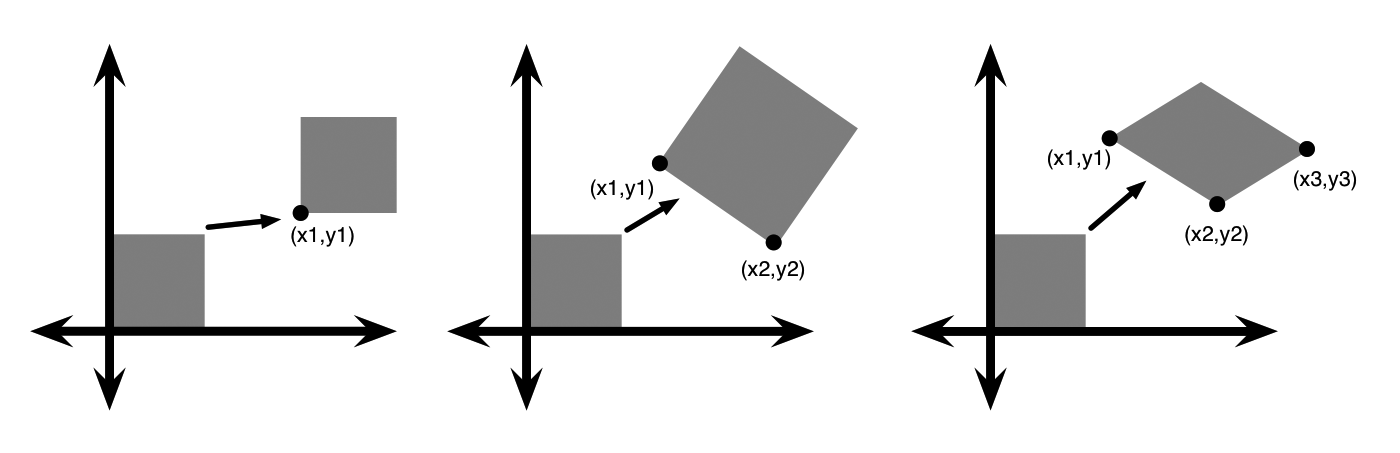
† The z-axis position determines which shape is on top when they overlap. The z-axis position and scale are not stored in the affine transform matrix and do not affect the shape of objects.
Color Adjustments
Context Free uses the HSBA color space (HSB/HSV color plus alpha, or opacity). The HSBA coordinates are [0,360) for hue, [0,1] for saturation, [0,1] for brightness, and [0,1] for alpha (opacity).
| Adjustment | Meaning |
|---|---|
| hue num h num |
add num to the drawing hue value, modulo 360 |
| saturation num sat num |
range [-1,1]. If num<0 then change the drawing saturation num% toward 0. If num>0 then change the drawing saturation num% toward 1. |
| brightness num b num |
range [-1,1]. If num<0 then change the drawing brightness num% toward 0. If num>0 then change the drawing brightness num% toward 1. |
| alpha num a num |
range [-1,1]. If num<0 then change the drawing alpha num% toward 0. If num>0 then change the drawing alpha num% toward 1. |
| hue num1 num2 num3 h num1 num2 num3 |
Equivalent to hue num1 saturation num2 brightness num3 |
| hue num1 num2 num3 num4 h num1 num2 num3 num4 |
Equivalent to hue num1 saturation num2 brightness num3 alpha num4 |
| blend blend_mode | Sets the color blending mode. |
Targeting a Color
There are four more drawing color adjustments for changing the drawing color components with respect to the target color. This is useful if you have a recursive shape rule that adjusts a color component, and you don't want to overshoot a value. For example, the drawing hue is red and you want the drawing hue to trend toward yellow, but never go past yellow to green.
| Adjustment | Meaning |
|---|---|
| hue num target h num target |
range [-1,1]. If num<0 then change the drawing hue num% toward the target hue moving clockwise around the color wheel. If num>0 then change the drawing hue num% toward the target hue counter-clockwise around the color wheel. |
| saturation num target sat num target |
range [-1,1]. If num>0 then change the drawing saturation num% toward the target saturation. If num<0 then change the drawing saturation num% toward 0 or 1, whichever is closer. |
| brightness num target b num target |
range [-1,1]. If num>0 then change the drawing brightness num% toward target brightness. If num<0 then change the drawing brightness num% toward 0 or 1, whichever is closer. |
| alpha num target a num target |
range [-1,1]. If num>0 then change the drawing alpha num% toward the target alpha. If num<0 then change the drawing alpha num% toward 0 or 1, whichever is closer. |
Example: Targeting yellow
For example, the following code applied consistently when drawing shapes, will change the initial hue 0 (red) quickly to yellow (hue 60) but not let it go past yellow towards green:
MyShape [ h 0.99 60 ] // yellow hues
More on targeting colors can be found in the tutorial Targeting a color.
Some common hues
Remember that the initial hue is always 0, i.e red. Some common hues follow:
| Hue number | Primary | Secondary | Tertiary |
|---|---|---|---|
| 0 | Red | ||
| 30 | Orange ("Red-Yellow") |
||
| 60 | Yellow | ||
| 90 | Yellow-Green | ||
| 120 | Green | ||
| 150 | Aqua ("Green-Cyan") |
||
| 180 | Cyan | ||
| 210 | Turquoise ("Cyan-Blue") |
||
| 240 | Blue | ||
| 270 | Violet ("Blue-Magenta") |
||
| 300 | Magenta | ||
| 330 | Reddish Purple ("Magenta-Red") |
||
| 360 (=0) | Red |
Color Blending
By default, Context Free draws each shape using the standard Source-Over color compositing mode. Newly drawn pixels overwrite pixels that were drawn before, modulo alpha opacity and anti-aliasing coverage. The blend color adjustment changes how new pixels combine with previously drawn pixels.
| Blend Mode | Name | Description | Example |
|---|---|---|---|
| CF::ColorBurn | Color Burn | “Under-exposes” the backdrop according to the darkness of the top pixel (like a photograph that didn’t get enough light). The blended color is the result of scaling down the color from the backdrop, in each channel (R, G, and B), such that it will never be greater than that channel’s value from the top pixel. (It’s called burn, even though it makes things darker, because in film photography, you create this effect by focusing extra light on the final print.) | 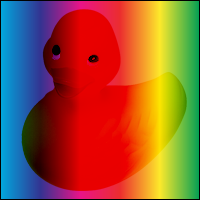 |
| CF::ColorDodge | Color Dodge | “Over-exposes” the backdrop according to the lightness of the top pixel (like a photograph that had too much light for the film). The color from the backdrop is scaled up in each channel (R, G, and B) such that it will never be less than that channel’s value from the top pixel. | 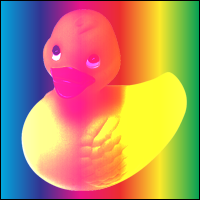 |
| CF::Darken | Darken | Constructs a new color that uses the minimum value for each channel (R, G, and B) from the top pixel and the backdrop. | 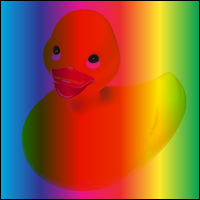 |
| CF::Difference | Difference | Constructs a new color where the value for each channel (R, G, and B) is the absolute difference between the values for that channel in top pixel versus the backdrop. | 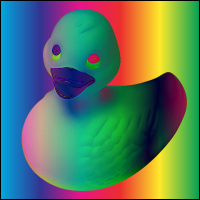 |
| CF::Exclusion | Exclusion | Creates an effect similar to difference but not as extreme. For each channel (R, G, and B), the new value is the sum of the values from the two layers minus twice their product (after converting percentages to values from 0 to 1). | 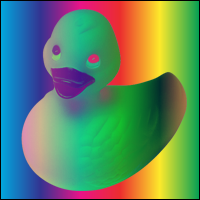 |
| CF::HardLight | Hard Light | Creates the effect of shining a bright light in the pattern of the top pixel onto the backdrop, where this is the only light shining on the backdrop (if the top pixel is opaque) and the backdrop reflects bright light. For each channel (R, G, and B) in the top pixel, it is equivalent to either multiply or screen, depending on whether that channel is less than or greater than 50%. | 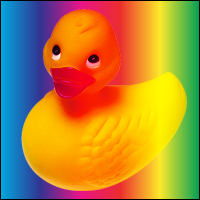 |
| CF::Lighten | Lighten | Constructs a new color that uses the maximum value for each channel (R, G, and B) from the top pixel and the backdrop. | 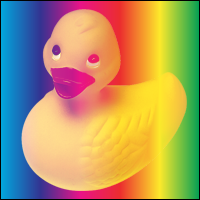 |
| CF::Multiply | Multiply | Creates the effect of light passing through two colored slides stacked together. For each channel (R, G, and B), the blended color is the values from the two layers multiplied together, after converting percentages to values from 0 to 1. The final blended value (the difference from black) is always equal or less than the starting values. | 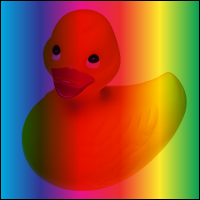 |
| CF::Normal | Normal | Uses the color of the top pixel as the blended color (which is then scaled according to the top-pixel’s transparency). | 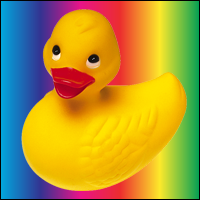 |
| CF::Overlay | Overlay | Creates an effect equivalent to hard-light, but with the layers swapped. This means multiply if the bottom layer is dark (for each channel independently) and screen if it is bright. | 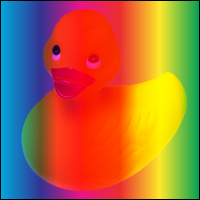 |
| CF::Screen | Screen | Creates the effect of shining two different image projections onto the same screen. For each channel (R, G, and B), the difference between the layer values and 100% are multiplied together. The final values are always the same or increased from the originals (the difference from white is the same or reduced). | 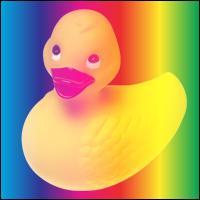 |
| CF::SoftLight | Soft Light | Creates the effect of shining light in the pattern of the top layer on to an already reasonably-well lit version of the backdrop. The colors of the bottom layer are shifted towards the colors from the top layer, with the exact formulas changing according to the brightness of both layers. | 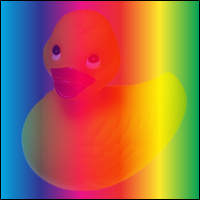 |
The CSS color blending modes color, hue, luminosity, and saturation are not provided because the AGG graphics library does not implement them. Three Porter-Duff compositing modes are provided as well. The single-layer drawing model of Context Free limits the utility of compositing modes; which is why the remaining Porter-Duff compositing modes are not implemented.
| Blend Mode | Name | Description | Example |
|---|---|---|---|
| CF::Clear | Clear | Erases the backdrop to transparent regardless of the color of alpha value of the top pixel. Pixels with partial coverage result in partial erasure of the backdrop. | 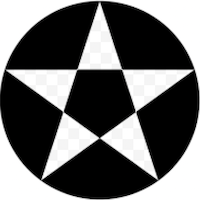 |
| CF::Plus | Plus | The color channels of the top pixel and the backdrop are linearly added. | 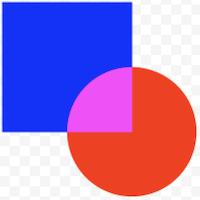 |
| CF::Xor | XOR | The non-overlapping portions of the top pixels and backdrop are combined. Areas of equal alpha will be transparent. | 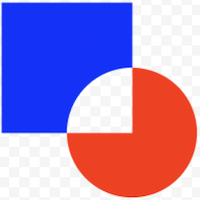 |
Time Adjustment
When rendering an animation the timeline for the animation is divided into frames and each frame is rendered into the movie (or into discrete png files). Each shape has a birth time, where it starts to be drawn; and a death time, where it stops being drawn. This is defined as a pair of one dimensional affine transforms that share the same scale element. The birth time can be -∞, which means that the shape is drawn from the start of the animation until it dies. The death time can be ∞, which means that the shape is drawn from birth until the end of the animation.
| Adjustment | Meaning |
|---|---|
| time num1 num2 | translate birth time by num1 and death time by num2, in current time scale |
| timescale num | multiply current time scale by num |
Basic Shape Adjustments vs. Ordered Shape Adjustments
or what is the difference between [ … ] and [[ … ]]
The simplified manner for handling geometric shape adjustments is to take each adjustment and apply it to create the final shape geometry in a fixed and easy to understand order. In this example:
shape foo {
    bar [ x 1 y 2 rot 30 s 2 0.5 skew 10 0 flip 45 ]
}
The bar shape is first translated (1, 2), then it is rotated 30 degrees, then it is scaled (2, 0.5), then it is skewed 10 degrees from the y-axis, and finally it is reflected across a 45 degree line. It doesn't matter if you shuffle the adjustments, they are still applied in this fixed order:
shape foo {
    bar [ flip 45 x 1 rot 30 y 2 skew 10 0 s 2 0.5 ]   // same as above
}
If you have multiple instances of an adjustment (multiple scales, multiple x-axis translates, etc.) then only the last one is used. The other are dropped with a warning message. This translate/rotate/scale/skew/flip (TRSSF) adjustment order simplifies CFDG design by allowing you to not worry about what order you place the adjustments.
But being able to control the order that the adjustments are applied to create the final shape geometry is also very useful and can lead to some powerful idioms. Context Free/CFDG also has a syntax for specifying a list of shape adjustments where the adjustment order is significant:
shape spike {
    SQUARE []
    spike [[ x 0.5 s 0.95 x 0.5 ]]
}
Each time the spike rule is drawn it draws a square then draws another spike shifted over by 0.5, shrunk by 0.95, and shifted over again by 0.5, but the second shift is done in the scaled geometry. The end result is a line of shrinking squares that are perfectly abutted edge-to-edge. You can change the scaling from 0.95 to some other value and they will still be perfectly abutted. If you tried to do this in the simple adjustment order:
shape spike {
    SQUARE []
    spike [ x 0.975 s 0.95 ]
}
you would have to carefully compute the translation whenever you change the scale. Another useful idiom is to put a rotation before a translation and/or scale to work in polar geometry:
startshape flower

shape flower {
    // petals
    CIRCLE [[ r  30 x 0.5 s 1 0.25 ]]
    CIRCLE [[ r  90 x 0.5 s 1 0.25 ]]
    CIRCLE [[ r 150 x 0.5 s 1 0.25 ]]
    CIRCLE [[ r 210 x 0.5 s 1 0.25 ]]
    CIRCLE [[ r 270 x 0.5 s 1 0.25 ]]
    CIRCLE [[ r 330 x 0.5 s 1 0.25 ]]
    //center
    CIRCLE [ s 0.25 b 1 ]
}
These are just two of many possible ways to use ordered shape adjustments.
There is no order dependence on color coordinate changes (hue, brightness, etc.) so color changes are treated the same in both basic and ordered shape adjustment lists.